Lockers and sizes before the visit
An optional check-in step for venues that hand out sized kit and assign lockers. Each guest answers two short questions before the visit: what size they need, and which changing room they will use. A locker of that size, in a room of that kind, goes on their booking, and the guest sees its number straight away. Guests never pick a locker from a map. The number on the door is all they need.
You choose the wording. A venue whose locker sizes follow its robes asks “Which robe fits you best?”. Without your own wording the question asks what size locker the guest needs.
What the guest sees
Section titled “What the guest sees”The step sits after the card step (if you have one) and before the wristband.
- Their size. Your sizes, each with a short description, for example Standard (fits most people), Petite (shorter and narrower) and XXL (longer and wider). Your usual size is already chosen, and the page tells the guest that staff can change it at the desk.
- Their changing room. Only the kinds of room open on the day of their visit, for example Women’s and Men’s. If only one kind is open, the question is not asked.
- Their locker. For example: “Robin, you’re in Room 4, locker L01. Robe: Standard.”
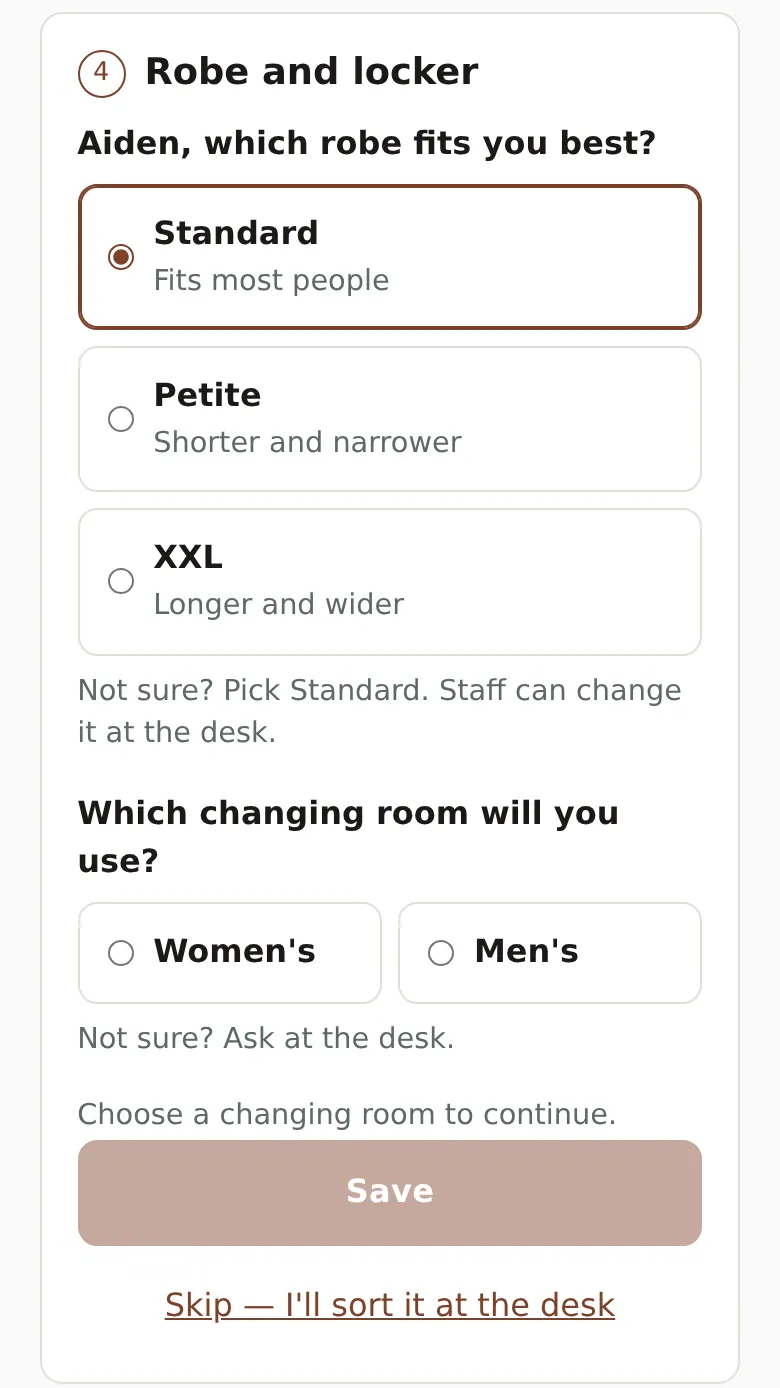
Guests can change their size or room until their visit starts or they check in. A change can give them a different locker number, and the page says so. If you do not require the step, the guest can choose Skip — I’ll sort it at the desk.
If no locker of that size is free in that kind of room, the guest is asked to see the desk. They are never told a particular locker was taken: the next free one is assigned instead.
What it does in Trybe
Section titled “What it does in Trybe”- The locker goes on the guest’s booking in Trybe as a $0 area booking: their own locker, at the time of their visit. Your team sees it on the order like any other booking line.
- Lockers are spread across a room rather than given out side by side.
- Nothing is charged, and Trybe sends the guest no second confirmation email.
- A locker your team booked for two guests together is left alone. Either guest who tries to change it is asked to see the desk.
- The step only works on a booking that is paid in full. A booking with something still owing is sent to the desk.
Required or optional
Section titled “Required or optional”- Optional (the usual choice): guests can skip, and check-in never waits for a locker.
- Required: self check-in waits until the guest has a locker. If the step cannot be done online (Trybe does not answer, or changes have closed), it never blocks check-in: the desk sorts it.
The sizes coming each day
Section titled “The sizes coming each day”In the console, go to Integrations → your Arrivals integration → Checks → Sizes by arrival and choose Recompute. It takes a few seconds. The board covers the next seven days:
- One row per arrival time, plus a total for each day.
- The sizes guests chose, for example Standard 12 · Petite 1 · XXL 2.
- Not chosen yet: guests holding a pass who have not answered. Stock for them by your usual mix. A total that counted only the guests who answered would leave you short.
Export CSV downloads the same table. The board shows counts only, never guest names. If a booking could not be read from Trybe, the board says the counts are short and asks you to recompute.
What we set up with you
Section titled “What we set up with you”- Your lockers in Trybe. Each locker is a bookable area, named with its room and number,
and its size after a last dot, for example
Room 2 · L06 · Petite. A locker without a size is your usual size. - Your changing rooms. Each room has one $0 area booking type per kind of room (women’s, men’s, or all-gender). A room switches from women’s to men’s on a date when your team opens the other type’s dates in Trybe. The step reads this for each visit day, so a switch shows up on its own.
- Which passes get the step, how long a visit lasts, your sizes and their descriptions, and your wording for the questions.
- Whether the step is required.
To test it, follow Test check-in before you go live with a pass that has the step, then open the booking in Trybe and find the locker on it.
Something wrong or unclear on this page? Tell us and we’ll fix it.