Create and send single-use codes
Single-use codes are personal promo codes for a gift card sale: one per guest, each working once. You create them in a batch, download the list, and send it with your own email tool. They belong to a campaign and give its discount; see Run a gift card promotion for setting the campaign up first.
Open the integration in the console, choose Promotions under Tools, and open the Codes tab.
Create a batch
Section titled “Create a batch”- Choose Create codes, or Create codes on the campaign’s row on the Campaigns tab.
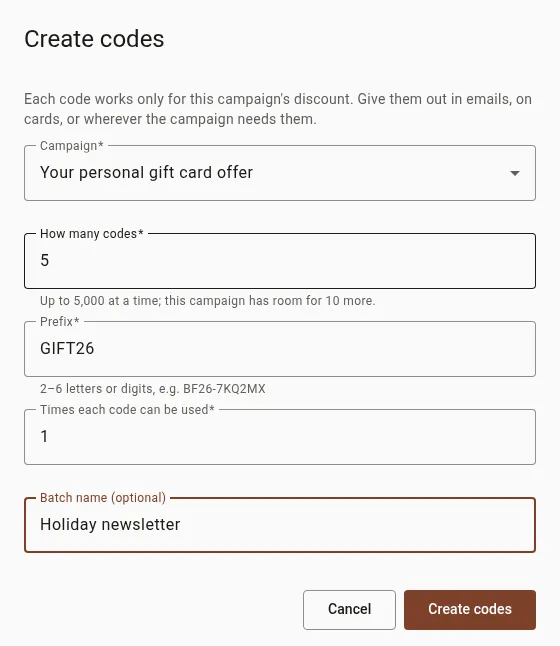
- Choose the campaign. It must be switched on and not ended.
- Enter how many codes you want, up to 5,000 at a time. You can create as many batches as you like, up to the campaign’s total number of orders, and the dialog tells you how many that leaves.
- Enter a prefix of 2 to 6 letters or digits, such as
KS, so your codes readKS7Q2M.... - Choose how many times each code can be used. Leave it at 1 for single-use codes.
- Choose Create. You may be asked to confirm it’s you.
Save the codes before you close
Section titled “Save the codes before you close”The codes are shown once. They are stored in a form that cannot be read back, by us or by you, so the list on your screen is the only copy.
- Download CSV saves the list as a spreadsheet file, ready to import into your email tool. It has a header row and one code per row, with the campaign, the discount and the dates beside each code.
- Copy puts the codes on your clipboard, one per line.
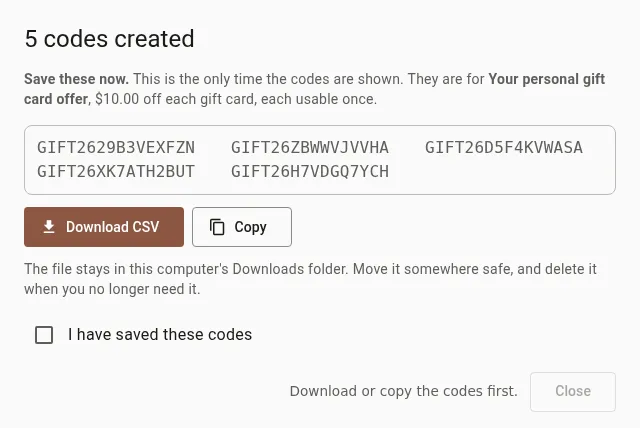
Close stays unavailable until you have downloaded or copied the codes, or ticked I have saved these codes. The downloaded file stays in this computer’s Downloads folder: move it somewhere safe and delete it once your email has gone out.
Every administrator of your organization is emailed that the codes were created, and by whom.
If the screen says it could not confirm the codes were created, check the Codes tab before trying again: if the batch is listed, its codes cannot be shown again. Void it and create a new one.
See how many are used
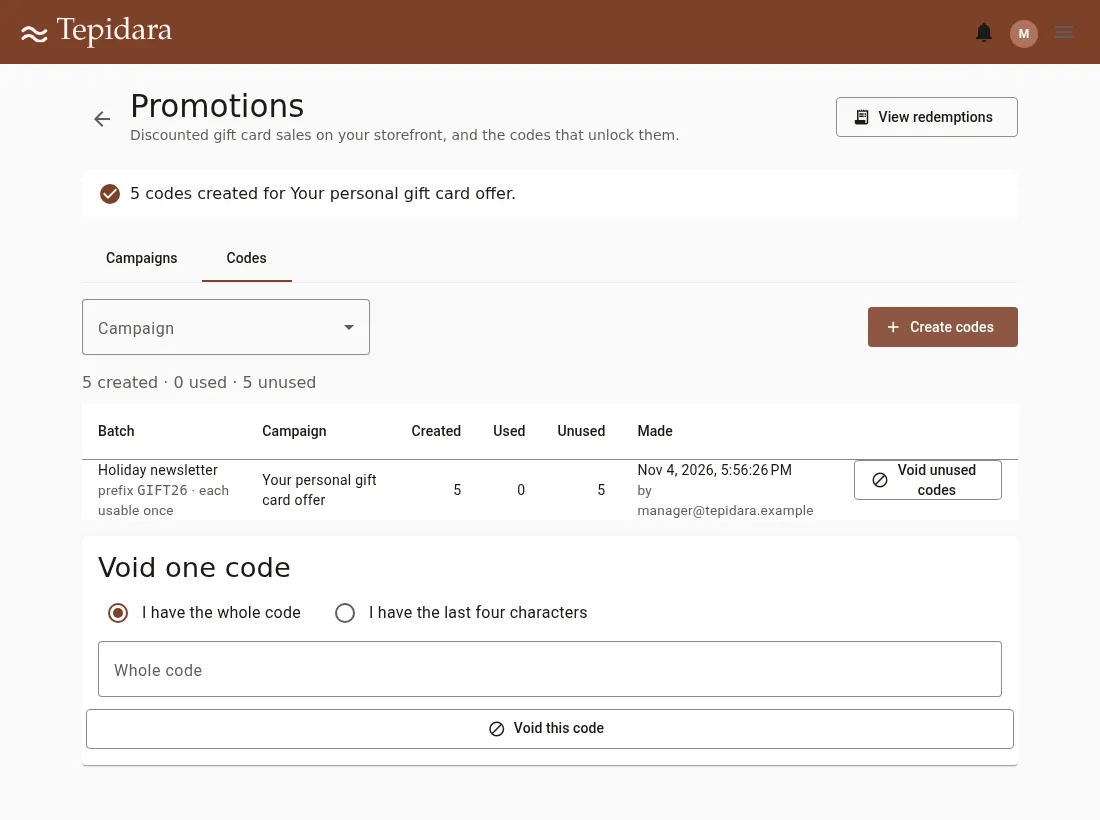
Section titled “See how many are used”The Codes tab lists every batch with how many codes were created, used, unused and voided, and who created it. A code counts as used once a guest’s order with it is in checkout or paid; an abandoned checkout gives the code back after a few hours. The line above the table adds up the batches shown, for example “500 created · 37 used · 463 unused”.
Filter by campaign to see one sale’s codes.
Void codes
Section titled “Void codes”Void a batch when its list is lost or was sent to the wrong people, or when a sale is over early:
-
Choose Void unused codes on the batch.
-
The confirmation names the batch and how many unused codes it will stop. Choose Void 463 codes (with your batch’s number).
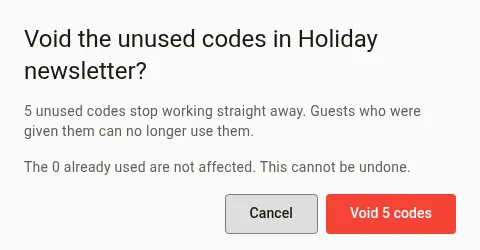
A voided code stops working at once for any new order: a guest who tries it is told it is no longer valid. An order already in checkout with it keeps its discount and can still be paid. Codes already used are unaffected, and the report keeps them.
To stop one code, for example one that was shared on social media, use Void one code on the Codes tab and enter the whole code, or its last four characters and its batch.
A lost list is replaced, not recovered: void the batch and create a new one.
Something wrong or unclear on this page? Tell us and we’ll fix it.