Use the kitchen display
Orders appear on the kitchen display as soon as they’re placed, on the screen for the lane that makes them. Nobody signs in on the tablet: it’s paired to your kitchen already.
Read the board
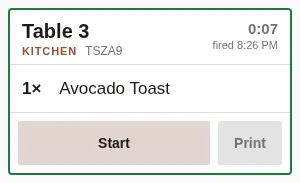
Section titled “Read the board”- Each card is one order’s items for one lane, with the order number and the guest’s seat or table. An order with neither shows Counter. On a screen that shows every lane, an order with both kitchen and bar items shows as one card per lane.
- The clock on each card shows how long the order has waited. The card’s colour moves from fresh through aging to overdue.
- A screen shows only what it was set up for: one lane, every lane, or the ready orders for front of house. Its name is at the top.
Move an order along
Section titled “Move an order along”- Tap Start when you begin an order.
- Tap Mark Ready when it’s ready to go out. It now shows on the front-of-house screen.
- Front of house taps Done when it has left the pass, and the card leaves the board.
Tapped the wrong one? Use Undo straight away, or Recall to bring an order back.
Print a ticket
Section titled “Print a ticket”Tap Print on a card. It prints at your kitchen or bar printer. If the tablet can’t reach the printer, the tablet’s own print dialog opens instead, so you can still print.
Clearing and recovering
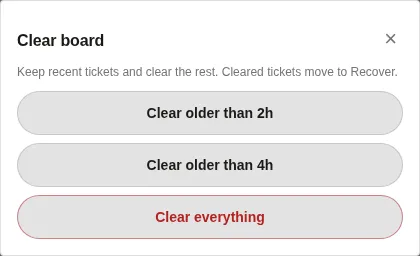
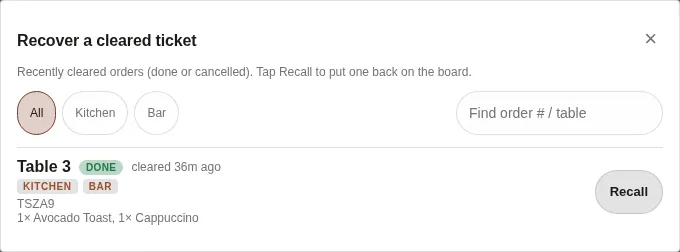
Section titled “Clearing and recovering”Clear board clears older tickets, for example at the end of a service. You can keep recent ones with Clear older than 2h or Clear older than 4h. Clear everything clears every open ticket the moment you tap it, orders still being made included, so keep it for the end of the day. Nothing is deleted: cleared tickets go to Recover, where you can find an order by number or table and bring it back.
The bell at the top switches the new-order sound on (🔔) and off (🔕). After the tablet restarts, tap the board once: tablets only play sound after a tap.
If something’s wrong
Section titled “If something’s wrong”| What you see | What to do |
|---|---|
| “reconnecting…” at the top | The Wi-Fi dropped. Wait: the board catches up on its own when it’s back. |
| “Cannot reach the server” or “Can’t reach the kitchen service” | Check the tablet’s Wi-Fi first. If the Wi-Fi works and other screens are fine, check the tablet’s date and time: on an iPad, Settings → General → Date & Time → Set Automatically. A tablet with the wrong date can’t connect, even on good Wi-Fi. Then tap Try again. |
| A new order isn’t showing | Check the screen’s name at the top: it may show a different lane. Then check the other screens. |
| Print opens a print dialog | The tablet can’t reach the printer. Print from the dialog, and tell your manager so they can check the tablet’s settings. |
| No sound | Check the bell shows 🔔, and tap the board once. |
| “This screen was unpaired” or “Your session ended” | The screen needs a new code. Ask your manager to issue one for this screen, then type it on the pairing page. |
| “That code is not valid any more” | The code was already used or is over ten minutes old. Ask for a new one. |
If a screen is lost or broken, tell your manager. They can switch it off from the console straight away.
Something wrong or unclear on this page? Tell us and we’ll fix it.