How your online shop works
Your online shop is a website with your logo and colours where guests book and buy what you sell in Trybe. It works against your Trybe site: everything a guest buys becomes an order there, and your team sees it alongside every other booking.
What guests can buy
Section titled “What guests can buy”The shop has pages for:
- Passes and classes.
- Treatments and packages, with the times for each part of a package chosen one by one.
- Private areas, such as a daybed or a cabana.
- Gift cards, emailed, or posted if your Trybe site has postal delivery options. Trybe adds the postage to the gift card’s price.
- Memberships.
- Your café menu, if you take food and drink orders online.
Which of these appear, and which items in each, is set up with you. Trybe’s own settings still apply on top: an item that is private or not offered online in Trybe is never shown, and members-only items are not shown to the public.
Times and availability are checked with Trybe while the guest books. The lists of what you sell are kept as a copy that refreshes about every five minutes, so a change you make in Trybe shows in the shop within a few minutes.
Booking a pass, step by step
Section titled “Booking a pass, step by step”- How many are coming. The guest picks the size of their party.
- When. The shop finds the first day with room for the whole party and offers only times that fit them.
- Who’s coming. Each place is either Me (the person booking) or Someone new, with a name. Each guest gets their own line on the order in Trybe, and each guest named here is named on their line.
- Add to basket.
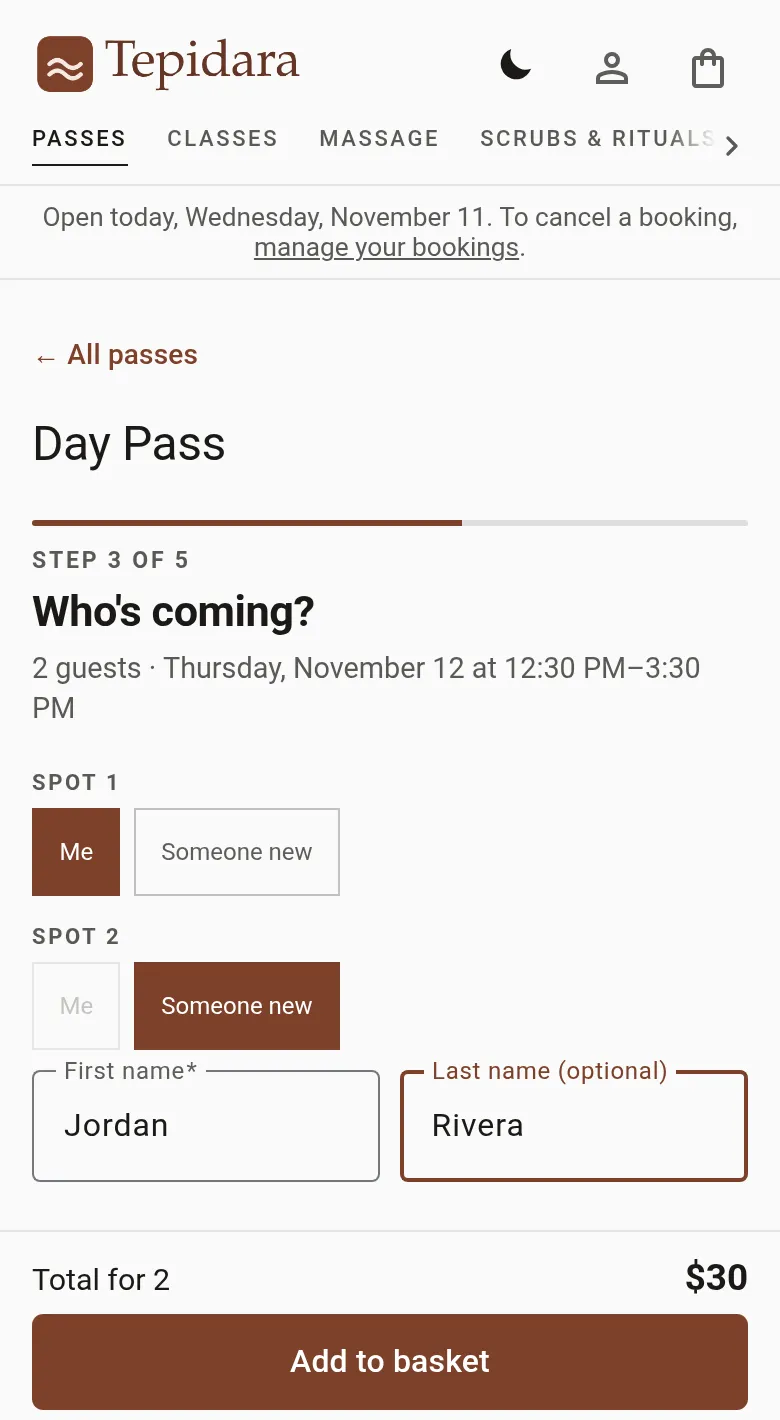
Some bookings have more steps. A page that offers several things starts with What would you like to book?. Where there is more than one area to choose from, the guest is asked Where would you like to be? after the time. Questions you ask each guest, such as a robe size, get a step of their own. Every screen shows how far along the guest is, for example Step 3 of 5.
If a class is full and you have Trybe’s waitlist switched on for it, the guest can still choose it. They join the waitlist and save a card instead of paying, and nothing is charged. A waitlist place is checked out on its own, not together with other items.
The basket and checkout
Section titled “The basket and checkout”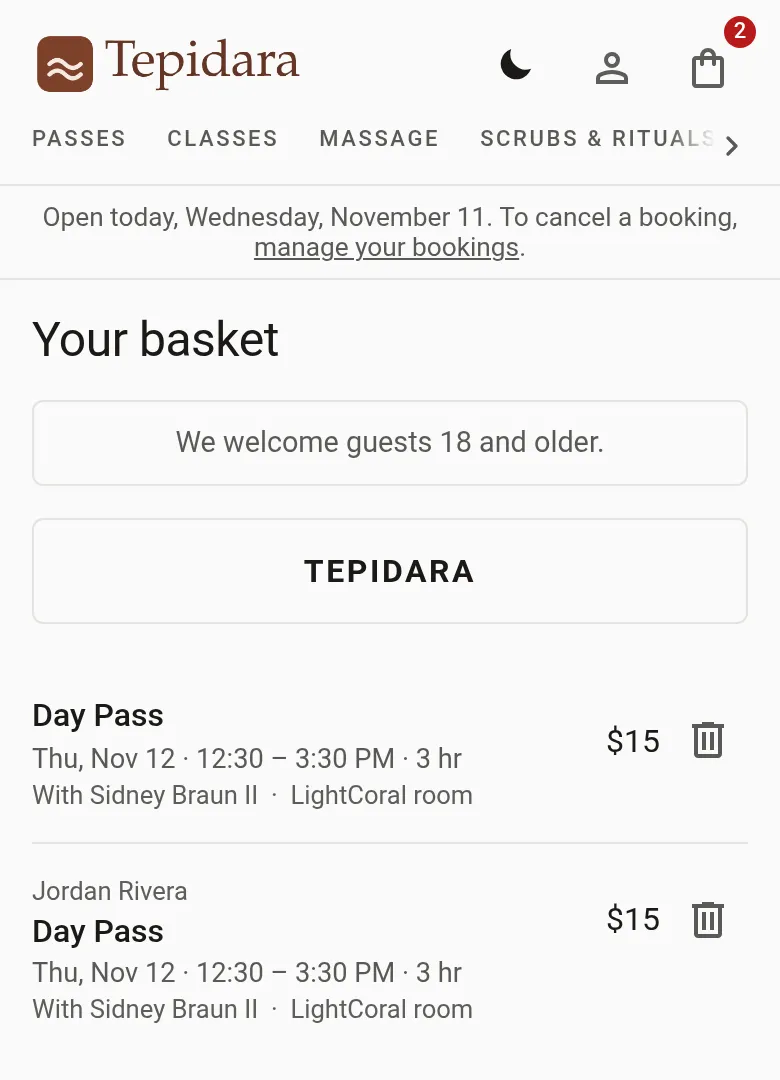
- Each line shows the day, the time and how long it lasts, and the guest can remove it.
- A guest who is not signed in gives their name, email and phone.
- Promo code takes the promo codes you create in Trybe, and Trybe applies their dates and limits. The gift card box takes gift cards sold in Trybe.
- Pay with card opens a secure payment page. A signed-in guest can pay with a card they saved before. Other ways to pay you use with us, such as HSA/FSA or bitcoin, appear in the same list.
- While a payment page is open, the basket is locked so the amount cannot change under it. The guest can reopen the payment page or cancel the payment.
An order is confirmed in Trybe only once it is paid. An order that a gift card or promo code covers in full is confirmed without a payment. A basket nobody paid for stays unconfirmed, and Trybe does not list it with your orders. If a payment goes through but the order is not confirmed straight away, a background check confirms it and alerts us.
The confirmation email
Section titled “The confirmation email”Trybe emails guests who book on Trybe’s own shop, but not orders made through another website, which is what your shop is. The shop can ask Trybe to send its usual order confirmation once an order is confirmed. This is a setting on your shop. If we set your shop up, ask us to switch it on.
Signing in and changing a booking
Section titled “Signing in and changing a booking”- Signing in needs no password. A guest enters their email and gets a one-time code that expires in 10 minutes. The code is only sent to an email that belongs to a customer in Trybe.
- Signed-in guests can use their credits and saved cards at checkout, and see their recent orders.
- Changing or cancelling follows your Trybe settings for whether guests may cancel or change bookings online. An unpaid booking can be cancelled right in the shop. Anything else opens the order on Trybe’s own account page, where the guest signs in with the email they booked with. Where your settings allow neither, or a package cannot be cancelled online, the guest is asked to contact you. A paid order is never cancelled from the shop itself.
- Have a gift card? in the footer lets a guest check a gift card’s balance with its code.
When online booking pauses or closes
Section titled “When online booking pauses or closes”- If Trybe stops answering, the shop pauses new bookings by itself and shows a banner. Guests can still browse. Booking reopens on its own once Trybe answers again, and we are alerted when it pauses.
- To close online booking at one of your locations, switch on that location’s closed setting (or ask us, if we set your shop up). Guests then see your own message and cannot add to or pay for a basket there. They can still browse, sign in, and cancel an unpaid booking of their own, and a payment made before the switch still goes through.
What we set up with you
Section titled “What we set up with you”- Which sections and items appear.
- Your locations’ address, phone number and description, which Trybe does not hold for the shop. Opening hours and closures come from Trybe.
- Your wording, and the email address the sign-in code comes from.
- Which ways to pay appear at checkout.
- The confirmation email.
- If you like, a sales channel of its own in Trybe, so your revenue by sales channel shows shop orders separately.
- Links that open one item’s booking page directly, for your own website or emails.
To book a group into one private area at one time, see Book a whole group into one tub.
Something wrong or unclear on this page? Tell us and we’ll fix it.