Try a gift card promotion on the demo venue
Our demo venue runs a real gift card sale on Trybe’s playground, so what you see is the product itself, not a mock-up. Orders and payments there are test data: nothing charges a real card, and nothing you enter reaches a real venue.
1. Buy a gift card with the sale code
Section titled “1. Buy a gift card with the sale code”-
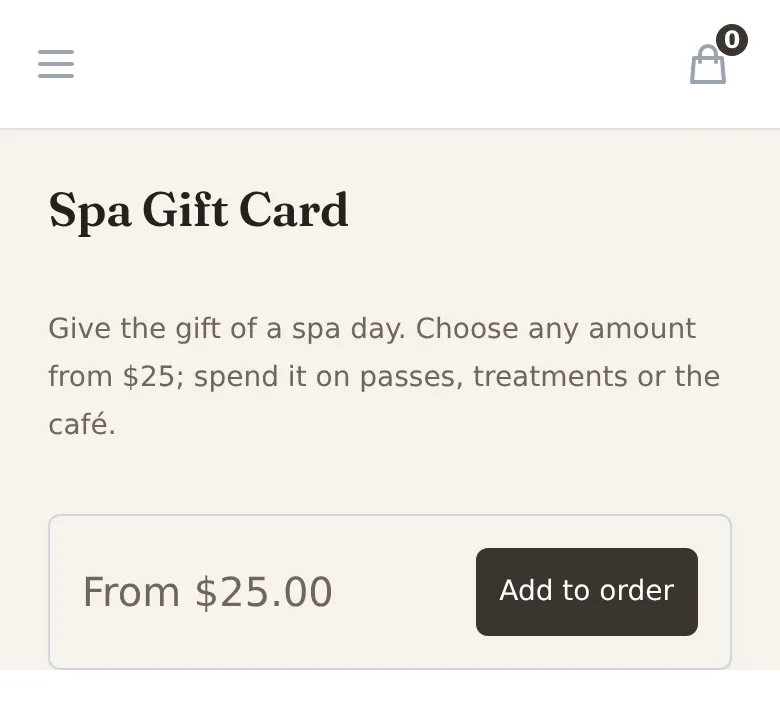
Open the demo venue’s website and find its gift cards. The Spa Gift Card sells for any amount from $25: the list shows it at $100.00, and its own page reads “From $25.00”.
-
Open the card and choose Add to order. A form opens: enter a recipient’s name and email (your own will do), then choose Add to order again. The amount starts at $25: leave it there so the figures below match.
-
At checkout, choose Redeem a promo code, type
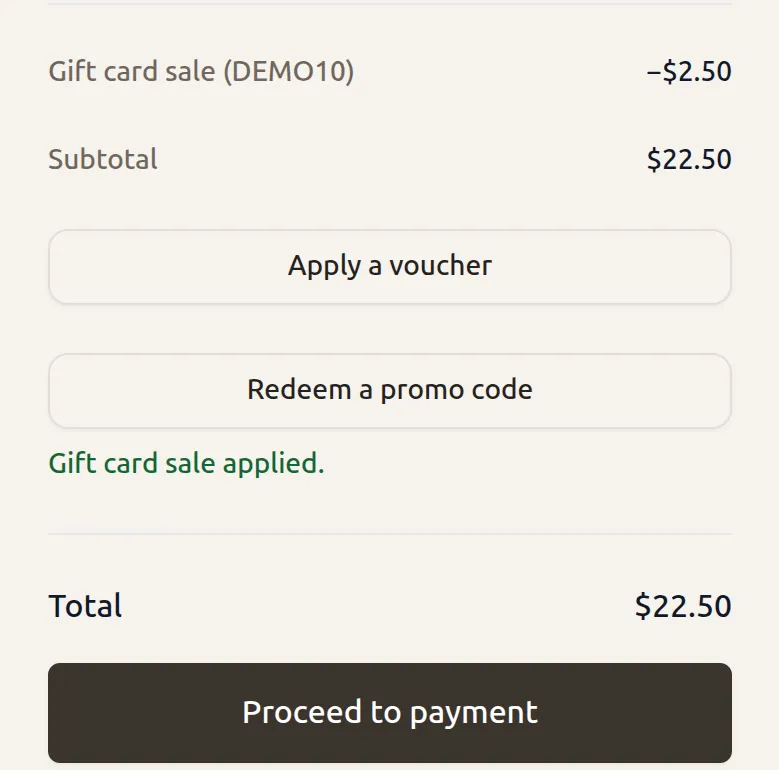
DEMO10and select Apply. The checkout also has Apply a voucher and Apply Gift Card: a sale code goes in neither of those. -
The page refreshes. The card still reads $25.00, and just above the subtotal the line “Gift card sale (DEMO10) −$2.50” shows what the sale took off, so the subtotal and total read $22.50. A note under the promo box also says the code was applied.
-
Fill in your details and choose Proceed to payment. A separate payment page opens: pay there with the test card. The gift card is issued at its full value.
Add a second Spa Gift Card before you pay and it is discounted too, up to four cards in one order. The code takes nothing off bookings, passes or treatments in the same order: a promotion applies only to the gift cards it names, at any amount (a $130 card comes to $117).
2. Try a single-use code
Section titled “2. Try a single-use code”Personal codes take $10 off each card and work once. Create a few yourself in the console (section 4 below), or ask us for one; use it on an order, then try it again on a second order: the second time, the guest is told the code has already been redeemed.
3. See what a guest sees when a code can’t be used
Section titled “3. See what a guest sees when a code can’t be used”-
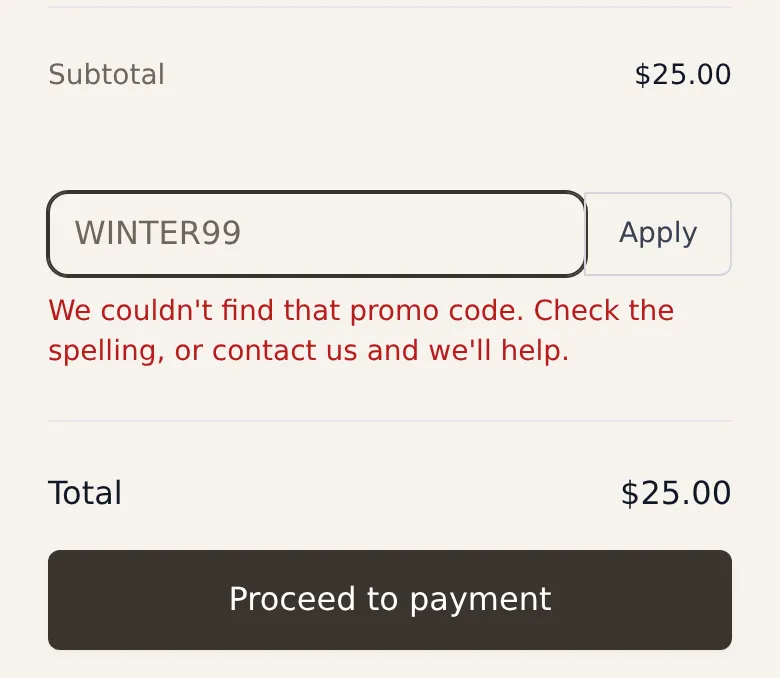
Type a code that doesn’t exist: the guest is told we couldn’t find that promo code.
-
Use
DEMO10with no gift card in the order: the guest is told the code is for gift cards.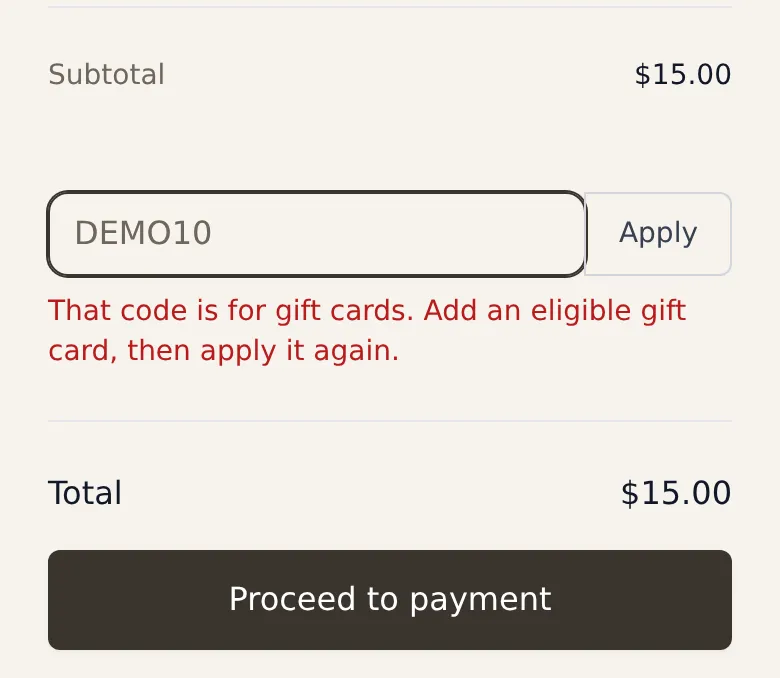
-
Leave an order unpaid for a few hours: the discount comes off and the use is given back.
4. The admin console
Section titled “4. The admin console”The demo venue’s console at app.tepidara.com is the staff half. Ask us for a sign-in and we’ll set one up for you, then open the gift card promotion integration and choose Promotions under Tools:
- On the Campaigns tab, open the demo campaign (its public code is
DEMO10) to see its rules: 10% off, the Spa Gift Card, its dates and its limits. - Choose Duplicate as new campaign, call it “My test sale”, give it your own public code and a total of 5 orders, switch it on and save. Try your code on the demo website: it applies at once, and the checkout line reads “My test sale” with your code, because guests see the campaign’s name.
- On the Codes tab, create 5 codes for your test sale and download them.
- Use one on the demo website, then come back: the batch shows 1 used and 4 unused.
- Void the batch, and try another of its codes: the guest is told it is no longer valid.
View redemptions opens the Promo redemptions board, which lists every order a promotion code was used on, and whether it was paid, abandoned at checkout or refunded.
Want a guided walk?
Section titled “Want a guided walk?”We’ll set up a sale with your own gift cards, dates and limits on the playground and walk it with you in about ten minutes. See Run a gift card promotion for every rule a campaign can have, and Create and send single-use codes for the codes.
Something wrong or unclear on this page? Tell us and we’ll fix it.