Run a gift card promotion
A gift card promotion lets guests buy a gift card for less than it is worth during a sale. A guest adds a $100 gift card on your website, enters your promo code in the usual promo box at checkout, and pays $90. The card they receive is worth the full $100.
Your booking platform’s own promo codes cannot do this, which is why this runs alongside it. Your existing promo codes keep working in the same box, so guests see one box and one result.
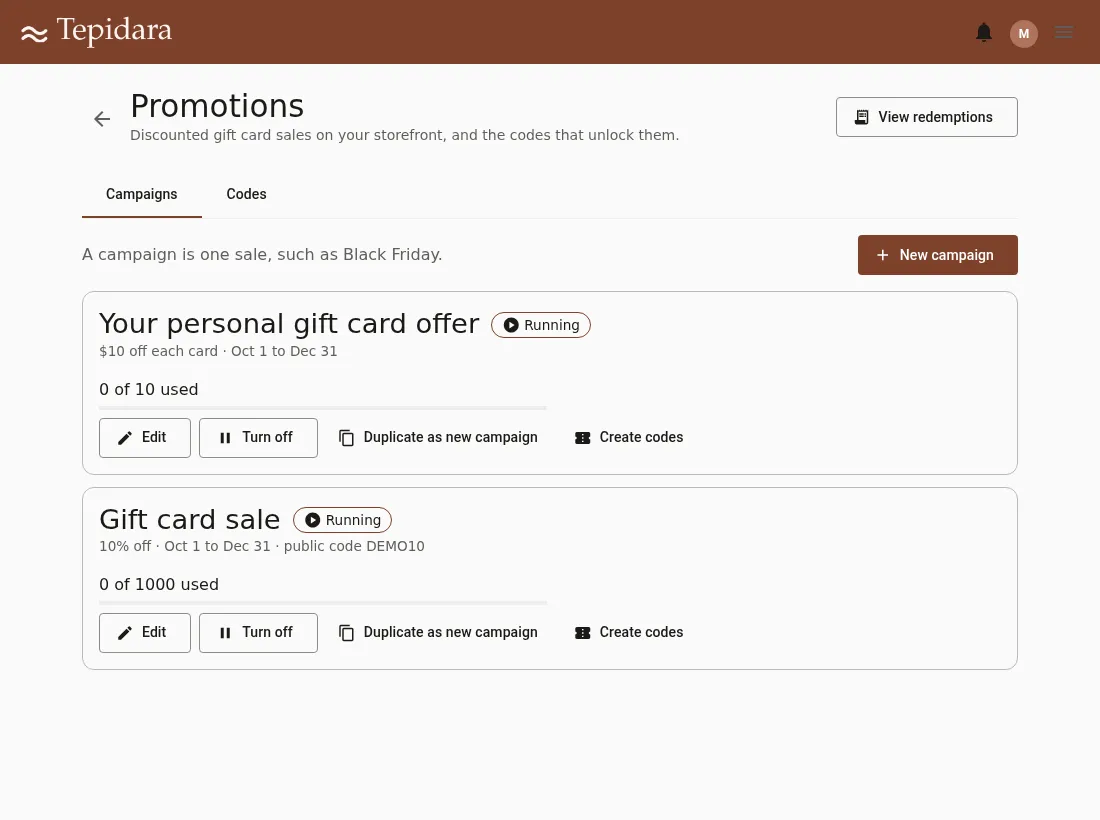
You set up each sale yourself. Open the integration in the console and choose Promotions under Tools. It has two tabs: Campaigns, for the sales themselves, and Codes, for single-use codes. View redemptions opens the report of every order a code was used on.
Before your first sale: Trybe setup
Section titled “Before your first sale: Trybe setup”Once per venue, before your first campaign, connect Promotions to your Trybe site. The Trybe setup card is at the top of the Promotions screen and reads Not finished until this is done.
- Choose Check to see where things stand. It reads your booking platform and lists each step, changing nothing: your site and its time zone, the two discount types the promotion applies at checkout, and the order updates your booking platform sends us.
- Choose Set up. The window lists exactly what it will do. If it asks, pick your site.
- Confirm your venue’s time zone. The window shows the time there now: check it matches the clock at your venue. It starts from your booking platform’s own setting, which is not always your venue’s zone. Campaign days start and end at midnight in the zone you confirm, and setup never changes it once saved, so ask us if it is ever wrong.
- Choose Set up in the window. You may be asked to confirm it’s you.
When every step is in place the card reads Complete. Setup only does what is missing, so it is safe to run again at any time. A step marked Needs a fix says what is wrong; fix that (or ask us), then run setup again. The other steps still run.
After your first website sale, the card says when your booking platform last sent us an order update. If it still says none has been sent after a paid order, ask us to look.
What a campaign is
Section titled “What a campaign is”A campaign is one sale, such as Black Friday. A summer sale later in the year is a second campaign with its own rules, and you can run as many as you like.
Choose Create your first sale (or New campaign once you have one) and fill in:
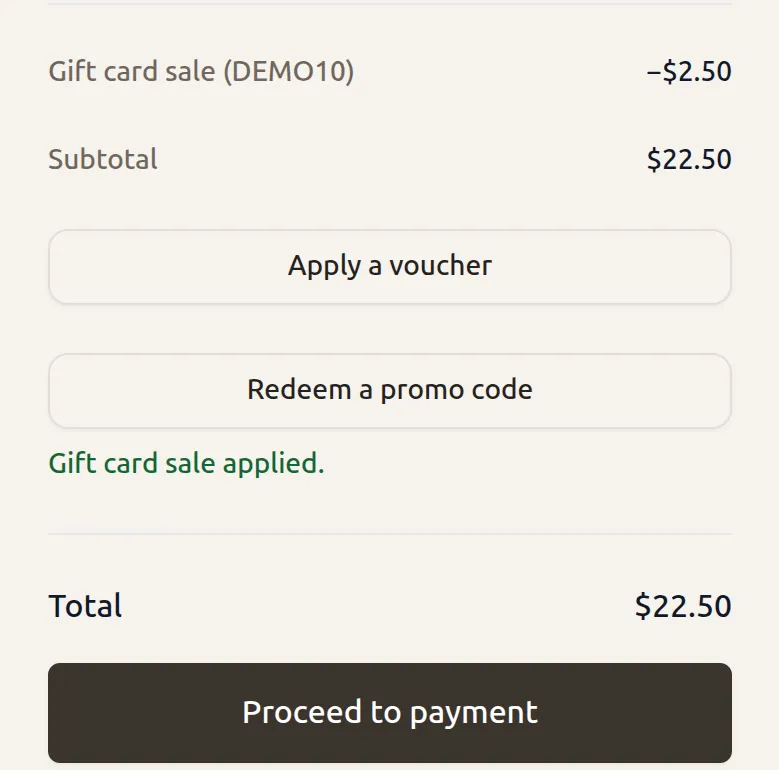
- Name. Guests see it. At checkout it names the discount line, for example “Black Friday gift card sale (FRIDAY10) −$10.00”, and the note under the promo box says “Black Friday gift card sale applied.” Name it the way you would describe the sale to a guest, even for a test or preview campaign. Your team and the Promo redemptions board see the same name.
- Discount. Percentage off (10% off) or Dollar amount off each card ($10 off). The form shows what a guest pays for your real cards as you type: “A $100 card sells for $90. The guest saves $10.”
- Gift cards. Tick the gift card products the sale applies to. The list comes from your booking platform. An amount off must be less than the cheapest card you tick, so a sale never makes a gift card free. For a free card, issue a comp voucher in your booking platform.
- Dates. The first day and the last day of the sale. Both days are included, and the days are your venue’s, in its own time zone, whatever computer you set it up from.
- Limits.
- Total orders across all guests. Required before the campaign can be switched on. Once this many orders have used it, the sale shows as sold out. For a sale with no limit, set a number well above anything it could reach: the total is a safety net for a code that travels further than you meant, not a target.
- Orders per email address. Optional. A guest could use another address, so treat it as a courtesy limit, not a guarantee.
- Gift cards discounted per order. 10 unless you change it. Raise it if guests buy many cards at once.
- Public code. Optional: one word for the whole campaign, for example in your newsletter. A word can be shared beyond who you sent it to, which is one reason every campaign has a total.
Choose Save. A campaign you leave switched off saves even if it is unfinished, so you can come back to it. Switching it on checks everything, and anything missing is pointed out next to the field. A discount above 30% or $25 a card asks you to confirm it once.
A different discount for each card value
Section titled “A different discount for each card value”A campaign takes the same discount off every card it covers. When a sale takes a different amount off each card value, for example $10 off a $100 card and $30 off a $250 card, make one campaign per value, each ticking only its own card and with its own public code.
Set up the first value with the sale’s dates and limits. Then choose Duplicate as new campaign: the copy keeps the dates, the limits and the discount, and starts switched off with no public code. Change its name, its discount and its gift card, give it its own code, and switch it on. Repeat for each value.
A guest can use one promotion code per order, as with your booking platform’s own codes; a second one is refused with “Only one gift card promotion can be used per order.” A guest buying a $100 card and a $250 card in that sale checks out twice, once with each code. Any number of cards of the same value go in one order with one code, up to the per-order limit.
Changing a campaign during a sale
Section titled “Changing a campaign during a sale”You can change the name, the dates, the limits and the public code at any time. A guest whose order is already in checkout sees the change when their page refreshes.
Once a guest has used a campaign, its discount and its gift cards are locked, so every order in the sale was charged by the same rule. To sell on different terms, choose Duplicate as new campaign, change what you need, and switch the old one off.
The total can be raised at any time, but not below the orders that have already used the campaign. Changing the public code stops the old word working for new orders; orders already in checkout with it keep their discount.
There is no delete. A finished campaign shows as Ended after its last day, and Turn off stops one early. Both keep its history and its report.
What each status means
Section titled “What each status means”| Status | Meaning |
|---|---|
| Scheduled | On, and its first day has not arrived yet. |
| Running | On, and guests can use it today. |
| Sold out | On, and its total number of orders has been used. |
| Needs attention | On, but something is missing or wrong, so no guest can use it. Open it. |
| Off | Switched off. Guests are told the offer isn’t running. |
| Ended | Its last day has passed. |
Single-use codes
Section titled “Single-use codes”Besides a public code, a campaign can have single-use codes for personal distribution, for example one per newsletter subscriber. You create them on the Codes tab; see Create and send single-use codes.
What the guest sees
Section titled “What the guest sees”- The guest adds a gift card to their order as usual.
- At checkout they choose Redeem a promo code and enter your code.
- The page refreshes. The gift card still shows its full value, and just above the subtotal a line shows your campaign’s name and the code and what it took off, so the lower total is explained. A short note under the promo box also says, by the campaign’s name, that it was applied.
- If they add another gift card before paying, it is discounted too, up to your per-order limit.
- They pay the discounted total. The gift card email goes out as it always does, at full value.
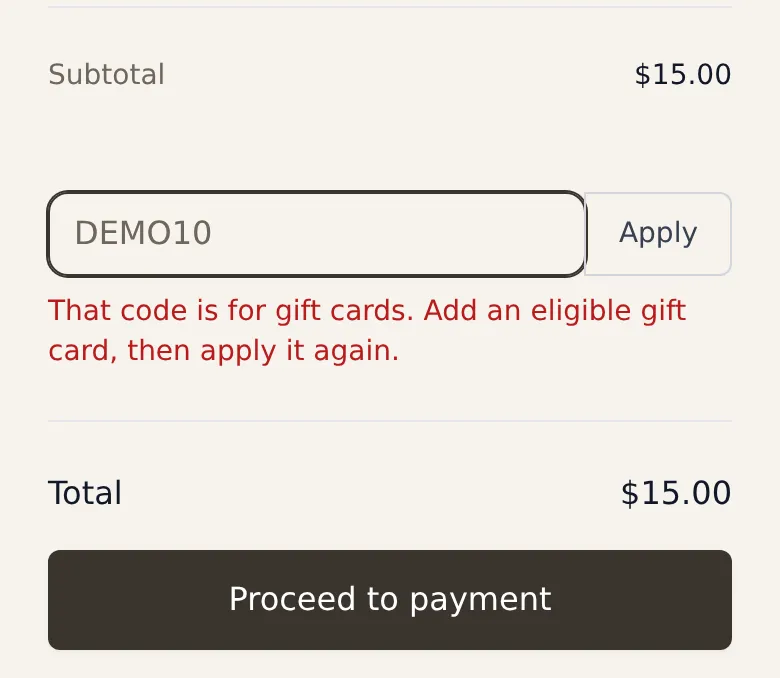
If a code cannot be used, the guest is told why in plain words: the code is not running yet, the offer has sold out, the code has already been used or is no longer valid, or there is no eligible gift card in the order.
Who can do what
Section titled “Who can do what”- Organization Admin and Integrations Manager can run Trybe setup, create and change campaigns, and create and void codes.
- Everyone else in your organization can see the campaigns, the code counts and the report, but not change them. They see a public code only by its last two characters.
Anything that changes what a discount is worth asks you to confirm it’s you (your second step, or your password) if you haven’t in the last few minutes: creating or switching on a campaign, changing its discount or its public code, creating or voiding codes, and a Trybe setup run that changes something. Each of those also emails every administrator of your organization, saying who did it, so a change nobody expected is seen at once. Every change is in your organization’s activity log, with the old and new values.
Reporting
Section titled “Reporting”The Promo redemptions board shows every order a promotion code was used on: the campaign, the order, the guest’s email, how many cards were discounted and by how much, and whether the order was paid, abandoned at checkout, or refunded. A use is only counted once the order is paid; a checkout that is abandoned gives the use back after a few hours.
Your booking platform records each sale as a full-value gift card with a discount, so your sales and gift card reports, and your reconciliation, show the discount separately from the card’s value.
The whole sale: website and desk together
Section titled “The whole sale: website and desk together”The Promo redemptions board shows website orders only. To see the whole sale, website and desk together, open your booking platform’s Reports → Discounts and promotions → Discount usage summary and set the sale’s dates. It lists each discount with how many gift cards it was used on and how much it took off:
- Website sales are under the promotion’s own discount. Its code starts with PROMO-PCT for a percentage off, or PROMO-AMT for an amount off. All your campaigns of the same kind share that one row; the Promo redemptions board splits them by campaign.
- Desk sales are under the staff discount you set up for the sale (see Good to know).
A cancelled order drops out of the report. The gift card uses are in its “items” columns, because the discount is applied to the gift card rather than to the whole order.
The guests’ email addresses in the report are your customer data. They are kept while you use the service and deleted when it ends.
Good to know
Section titled “Good to know”- Promotions apply to purchases on your website. For the desk, create one staff-only discount in your booking platform before the sale, at the same amount (for example 15%) and with a fixed amount. Staff then pick it from a list and can’t change it; see Sell or refund a discounted gift card. Your booking platform can’t give a staff-only discount start and end dates. Archive it after the sale’s last day: its history stays in the discount report.
- A refund takes two steps. Cancel the order and refund the payment. Refunding the payment alone leaves the gift card usable.
- If our service is ever unreachable, the promo box goes straight to your booking platform, so your own promo codes keep working; promotion codes resume as soon as the service is back.
- A guest whose ad blocker or privacy setting stops the promotion from loading sees “This promo code is not valid for use” and is never charged the wrong amount. Your desk honours the code by refunding just the discount; see Sell or refund a discounted gift card.
- To see it as a guest would, try it on the demo venue.
Something wrong or unclear on this page? Tell us and we’ll fix it.