Set up your kitchen screens
Each kitchen screen is a tablet paired to your kitchen display with its own one-time code. Once paired it stays signed in, shows only what you chose for it, and nobody has to type a password on it.
Plan your screens
Section titled “Plan your screens”Make a short list of every screen, where it’s mounted, and what it should show:
| What the screen is for | Choose under Shows |
|---|---|
| One station, such as the kitchen or the bar | That lane, e.g. Kitchen only |
| The runner or front of house, collecting finished orders | Front of house (ready orders) |
| The pass or expo, seeing everything | All lanes |
If you run more than one location, note which location each screen is at too.
Add a screen
Section titled “Add a screen”- On your own phone or computer, open your kitchen display’s address followed by /sign-in, and sign in with your work email and password (and your code, if you use two-step verification).
- Open Stations. The New station form is on that page.
- Give it a name that says where it is, such as “Kitchen” or “Bar”. If you have several locations, start with the location: “Downtown Kitchen”. The name shows on the screen and next to every ticket it moves.
- Under Shows, choose what this screen displays. Under Site, choose its location if you’re asked.
- Tap Create and show code. A six-digit code appears. It works once, for ten minutes.
Pair the tablet
Section titled “Pair the tablet”-
Check the tablet’s date and time are set automatically (on an iPad: Settings → General → Date & Time → Set Automatically). A tablet whose clock is wrong can’t connect to the kitchen display, even on good Wi-Fi.
-
On the tablet, open Chrome. Don’t use an incognito or private window: the screen would forget its pairing when the window closes.
-
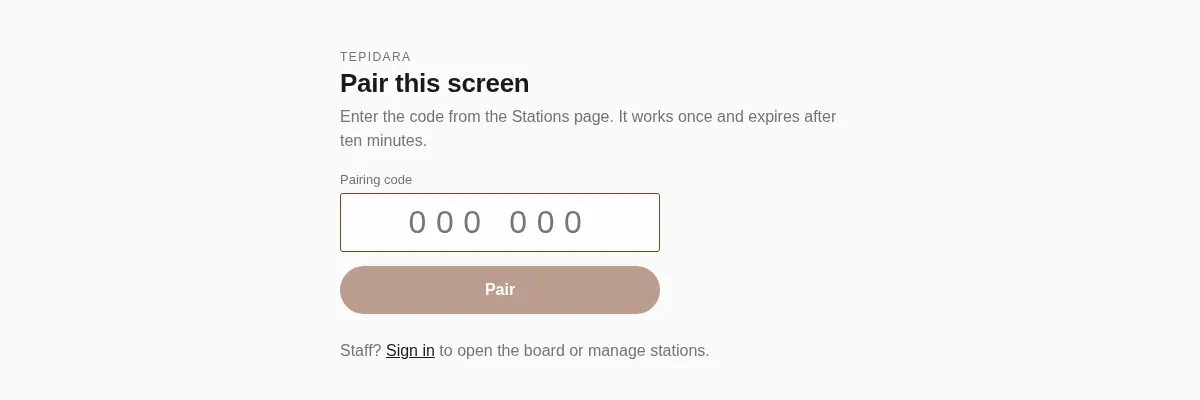
Go to your kitchen display’s address followed by /pair.
-
Type the six-digit code. The board opens, showing what you chose.
-
Set this page as Chrome’s home page and startup page, and remove any old kitchen display bookmarks. On an Android tablet you can also add it to the home screen.
-
Tap the board once. Tablets only play sound after a tap, so this turns on the new-order sound. Check the bell at the top shows 🔔, not 🔕.
Pair tablets one after another, not all at once. If a code is typed wrong too many times, pairing pauses for a minute.
Get printing working
Section titled “Get printing working”If your screen prints tickets straight to a kitchen or bar printer on your venue’s network, Chrome needs permission once on each tablet:
- In Chrome, open the site settings for your kitchen display (the icon left of the address).
- Set Insecure content to Allow, and Local network access to Allow.
- Reload the page, then tap Print on a ticket. If Chrome asks to look for devices on your network, tap Allow.
If there’s no printer on your network, Print opens the tablet’s print dialog instead. iPads always use the print dialog.
Check it works
Section titled “Check it works”-
Ring a test order through your booking platform.
-
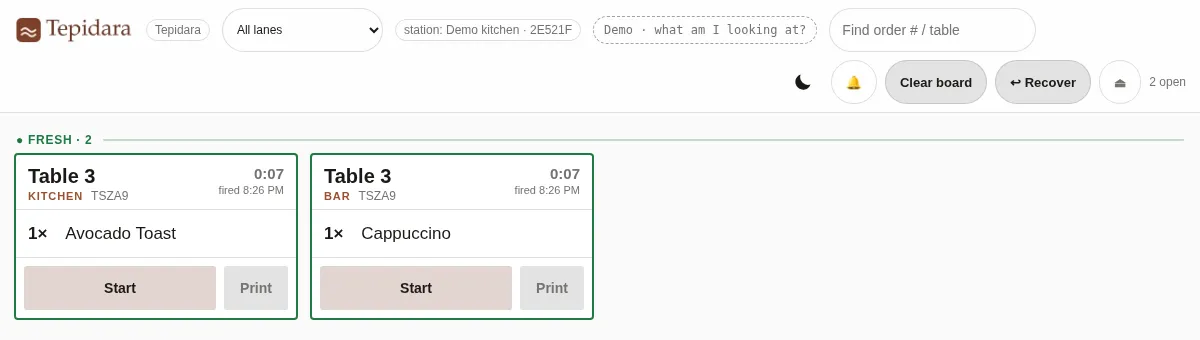
Check it appears on the right screen, in the right lane.
-
Tap Start, then Mark Ready: the front-of-house screen should show it as ready. Then tap Done.
-
Tap Print and check the ticket comes out of the right printer.
-
Turn the tablet’s Wi-Fi off for half a minute, then on again. The board should catch up on its own.
Manage your screens
Section titled “Manage your screens”Your console’s Organization → Devices page lists every screen with when it was paired and last seen. From each screen’s menu you can:
- Re-pair (new code): for a replaced tablet, or one whose browser was cleared. The old pairing keeps working until the new code is used.
- Revoke: for a lost, broken or retired tablet. It stops at once.
Every pairing, new code and revoke is recorded under the name of the manager who did it.
Something wrong or unclear on this page? Tell us and we’ll fix it.